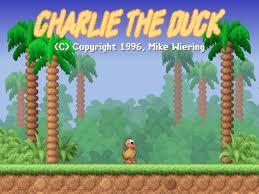
Charlie the Duck is a classic 2D side-scrolling platform game developed by Mike Wiering and originally released for MS-DOS in 1996. Created by Wiering Software, the game puts players in control of Charlie, a small duck exploring colourful levels filled with enemies, obstacles, hidden areas and collectable treasures.
The objective is to guide Charlie through three worlds, each containing three regular levels and a boss stage. Players can defeat most enemies by jumping on top of them, while avoiding dangerous creatures and environmental hazards. Coins, diamonds, hearts, eggs and shields provide rewards and useful power-ups along the way.
Exploration is an important part of the gameplay. Charlie can dive into certain bodies of water to discover hidden areas, where additional treasures and secrets may be waiting. Checkpoints also help players resume progress after losing a life.
The original DOS version features straightforward keyboard controls and colourful pixel-art graphics typical of PC platform games from the 1990s. Its accessible gameplay makes it suitable for younger players while offering a nostalgic experience for anyone who remembers the shareware era of computer gaming.
In later years, Charlie the Duck received a remake that preserved the original game's basic design while making small adjustments to its levels and difficulty. The updated version added background music and was released for Windows through Steam in September 2017. It also appeared on other platforms, helping introduce Charlie to a new generation of players.
Today, Charlie the Duck remains a small but memorable example of independent PC game development from the 1990s. Its simple controls, hidden passages and classic platforming mechanics capture the charm of an era when many developers distributed games directly to computer users.
The original DOS game and its modern remake offer different ways to experience this piece of gaming history.
Charlie the Duck — Controls
Menu navigation, movement and gameplay shortcuts
Menu Controls
Use the following keys to navigate the menus:
-
↑ / ↓ Arrow Keys — Move through menu options
-
Space / Enter — Select an option
-
Esc — Go back or quit the game
Default Gameplay Controls
| Key | Action |
|---|---|
| ← / → | Walk left or right |
| ↓ | Dive in certain areas |
| Alt | Jump |
| Ctrl + ← / → | Run |
Keyboard Shortcuts
| Key | Action |
|---|---|
| F1 | Display help |
| F2 | Save game |
| F3 | Load game |
| F4 | Toggle sound on/off |
| F5 | Change scrolling method |
| P | Pause game |
| Esc | Quit game |
Joystick and Custom Controls
To configure a joystick, open Options → Controls from the main menu.
To change the default keyboard bindings, select Options → Controls → Redefine Keys.
Tip: If the screen scrolling appears jerky or uneven, try pressing F5 to switch the scrolling method.